How to Prepare Print-Ready Files
Using the PDF/X-4 Workflow
Experience the benefits of adopting the PDF/X-4 workflow by creating standardized files that move through the print production process with less issues that plague non-standard workflows.
A PDF/X-4 workflow simply involves creating a PDF file by exporting or saving directly from applications like Adobe InDesign or Illustrator using a PDF/X-4 preset.
Key Characteristics of a PDF/X-4 Workflow
- Live Transparency: Unlike older print standards like PDF/X-1a, which require transparency to be flattened during PDF creation, PDF/X-4 retains live transparency. This eliminates many common prepress problems such as unwanted noticeable lines or color shifts in the artwork.
-
Color Management: X-4 is an ICC color-managed workflow, allowing various color spaces (RGB, CMYK, Grayscale, Lab) in the same document with embedded ICC profiles. Our RIP processes live transparency and performs color conversions at the last possible moment for optimal quality.
- Export: Generate the PDF directly from the design application using a standardized PDF/X-4 preset. This ensures all necessary data (fonts, images, color profiles) are embedded correctly without color conversion or flattening.
How to Export
In Adobe InDesign, use File/Export or the Ctrl+E shortcut
In Adobe Illustrator, use File/Export/Export As…
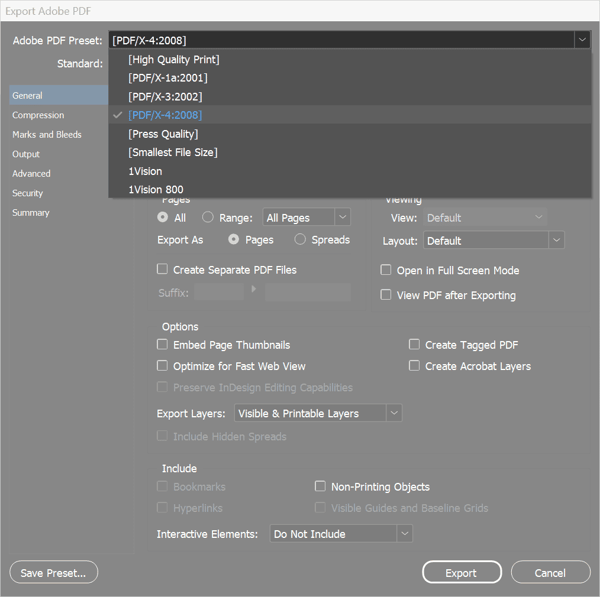
Choose a location for your file and click Export. This will bring up the export dialog where you will want to choose the [PDF/X-4:2008] preset from the drop-down menu. From there, we will make a couple of changes.
Note: If you are using a non-Adobe application, you will want to make sure it can export to an X-4 compliant PDF. For instance, in CorelDraw, you can do this by using the “Publish to PDF” option and choosing the PDF/X-4 option. Unfortunately, many applications don’t offer this option. If you are using something like Microsoft Publisher, look for export options such as “Save for a Commercial Printer”.
Defaults, Color, and Marks
Changes from the Defaults
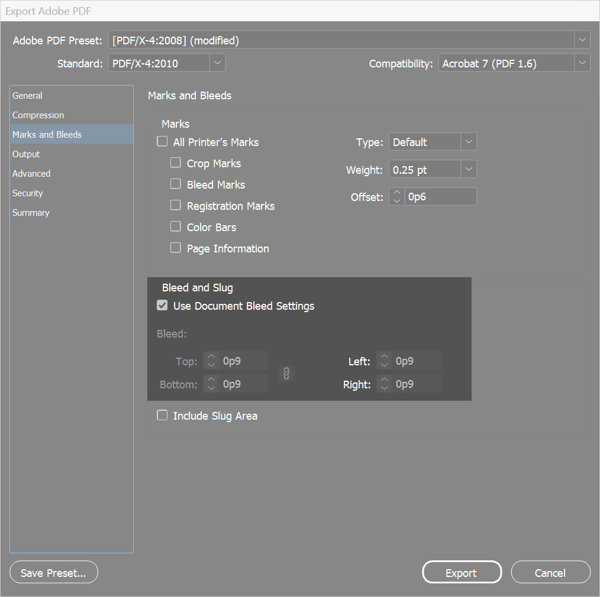
Generally, the default settings are acceptable for every section other than Marks and Bleeds, which will be covered below.
Compression and resolution settings can be changed and still be X-4 compliant, but typically, anything above 300ppi is indiscernible once printed, so we recommend leaving the defaults as is.
The Output color settings may also need to be modified based on your preference and setup.
Marks and Bleeds
None of the Marks checkboxes should be turned on. Marks are not necessary as the PDF/X-4 workflow will contain proper trim information embedded in the PDF. You can visually see this later in Acrobat by setting your preferences properly (information on this below).
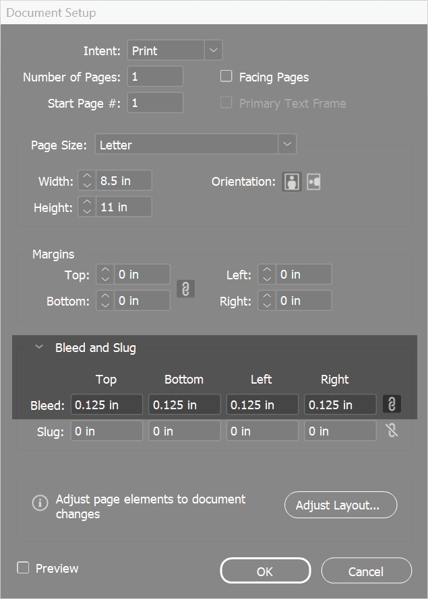
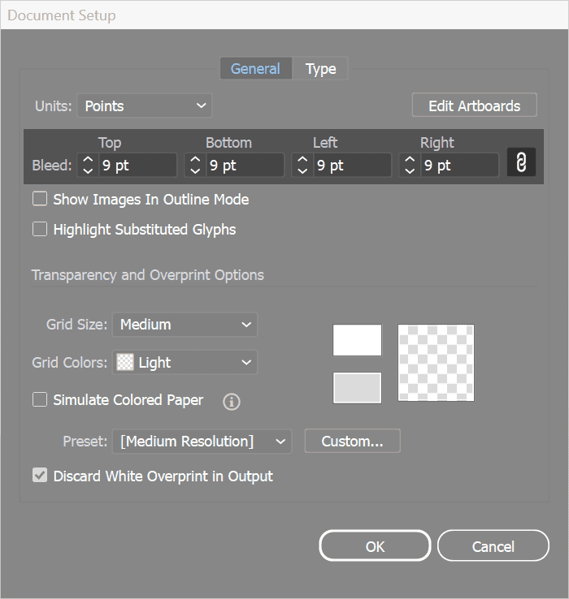
Note: Bleeds should first be set up within the application. To do this in Adobe InDesign or Illustrator, choose File/Document Setup from the menu or use Ctrl+Alt+P to bring up the Document Setup dialog. In InDesign, expand the “Bleed and Slug” section. Next to Bleed, set the values to one of the following, 0p9, 9pt, or 0.125 inches. Once this has been done, return to File/Export settings, check the “Use Document Bleed Settings” box, which should now properly show the Bleed settings applied to the document. If the values are shown as 0 after checking the box, cancel the export and go back to the document where bleeds should be set.
Output Color Settings
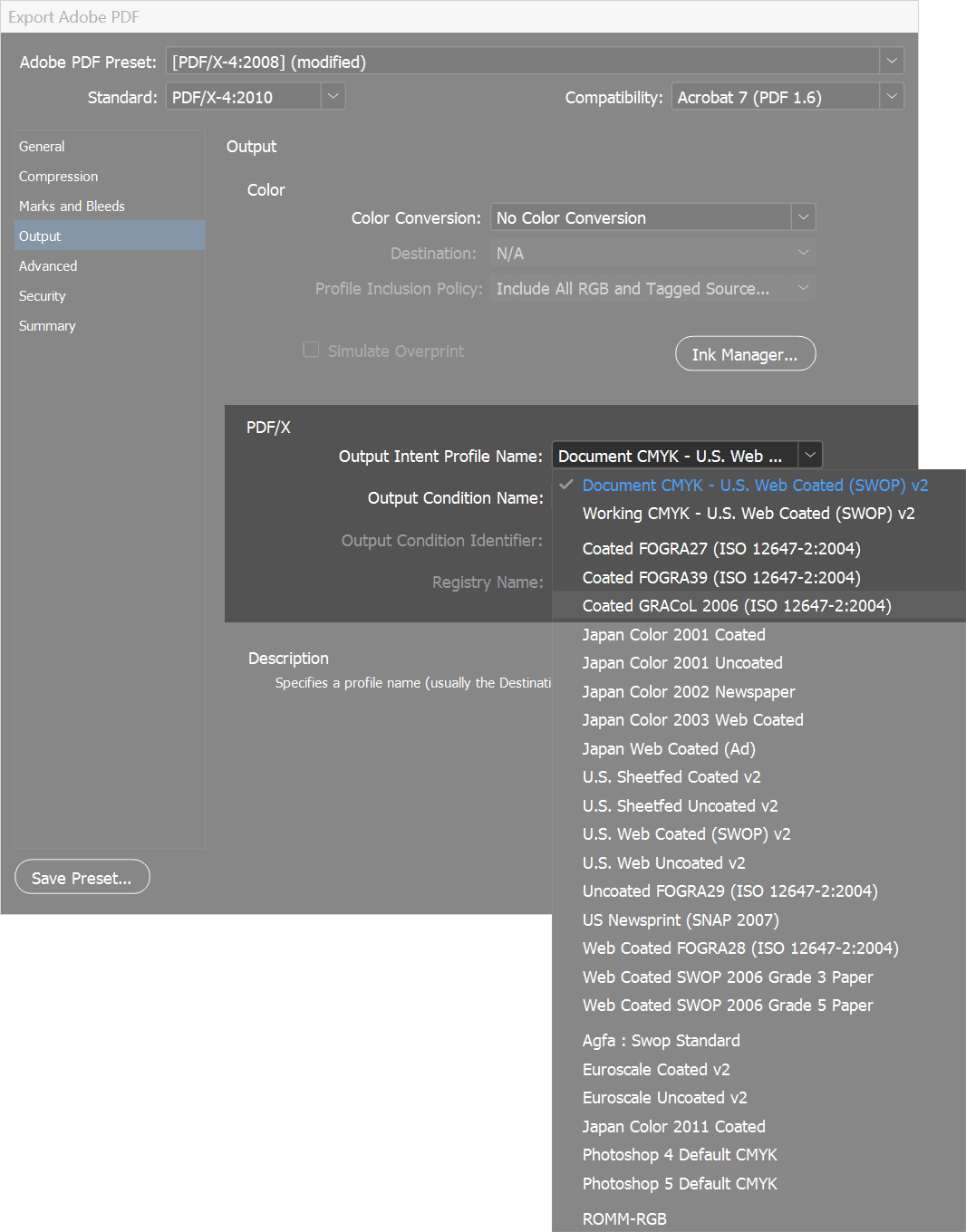
No Color Conversions are needed. Output Intent Profile Name should generally match what your settings are in your other Adobe applications. For most people this will be U.S. Web Coated (SWOP), which will work perfectly fine at 1Vision.
Note: Although default output intent profiles like U.S. Web Coated (SWOP) or U.S. Sheetfed Coated V2 will lead to pleasing color results, if you want to truly dial it in, 1Vision uses the Coated GRACol ISO 12647-2 Standard. Changing this setting in your Adobe applications is not necessary but can result in slightly more accurate color as it is the standard for G7 qualification. If you want to make the switch, this should be set up ahead of time in all your applications and linked files should be saved using this ICC profile. If you are unfamiliar with this or just prefer to use the default color settings, it is perfectly acceptable to do so.
Final Exported PDF
With your bleeds properly set and your color ready to go, push the export button and save the PDF. When complete, open your PDF in Adobe Acrobat and check it to make sure everything looks as it should.
Adobe Acrobat Preferences
Configuring Adobe Acrobat Preferences
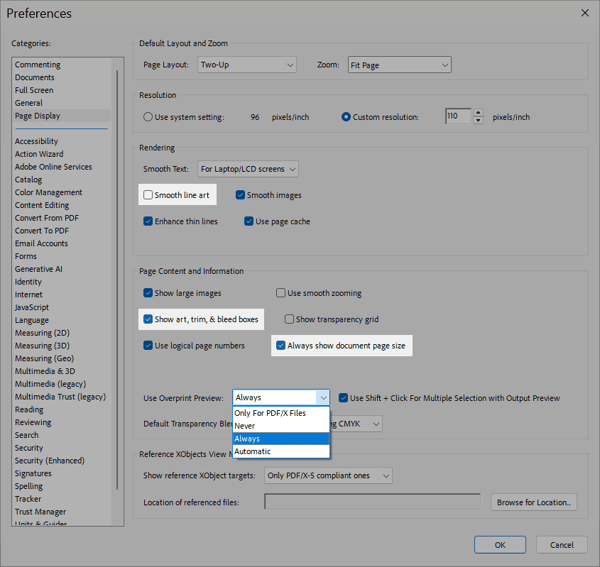
If you are using Acrobat Pro, we generally recommend changing a few settings so you can easily see your bleed and trim lines and your color settings. To do so, open up Preferences or use the Ctrl+K shortcut. Under Page Display, turn off “Smooth Line Art”, check the boxes next to “Show art, trim, & bleed boxes” and “Always show document page size”, and finally but most importantly, next to “Use Overprint Preview” set this to “Always”.